> ## Documentation Index
> Fetch the complete documentation index at: https://docs.iremember.app/llms.txt
> Use this file to discover all available pages before exploring further.
# Create your chapters
### Create a chapter
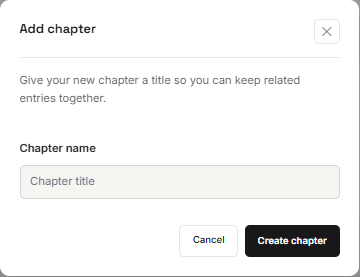
Create a chapter or choose 'Add entry without chapter' which will add your entry to a default chapter, titled 'Chapter 1'.
 If you selected 'Create a chapter', add the chapter title.
 ### Renaming a chapter
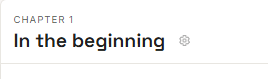
Select the 'cog icon" on the right side of the chapter title and change the chapter name then select 'Save changes'
### Renaming a chapter
Select the 'cog icon" on the right side of the chapter title and change the chapter name then select 'Save changes'
 ### Add another chapter
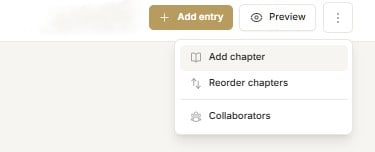
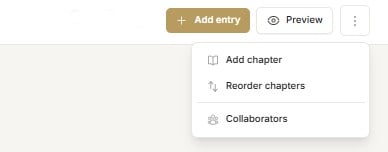
Select 'Add chapter' from the dropdown menu under the '3 elipses' (vertical dots) in the top right side of the ribbon.
### Add another chapter
Select 'Add chapter' from the dropdown menu under the '3 elipses' (vertical dots) in the top right side of the ribbon.
 ### Reordering chapters
Select 'Reorder chapters' from the dropdown menu under the '3 elipses' (vertical dots) in the top right side of the ribbon.
### Reordering chapters
Select 'Reorder chapters' from the dropdown menu under the '3 elipses' (vertical dots) in the top right side of the ribbon.
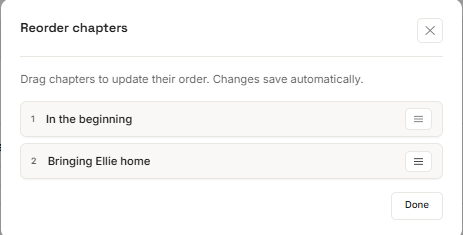
 Drag the chapters to the order you wish using the '3 vertical lines' (Hamburger Icon) to the right of the chapter heading then select 'Done'.